

Let me paint you a picture.
It’s 4 PM on a Friday. Your Product Manager pings you on Slack: "Just finished the documentation for next week's launch! Can you get this on the dev blog?"
You see the attachment: new_feature_specs_v3_final.docx. 📄
You open it. It’s... elaborate. Perfectly styled headers, complex tables, bold text, and—worst of all—about 15 high-res screenshots explaining the architecture.
Your smile fades. You know what comes next.
The "Copy-Paste Walk of Shame". You paste it into your IDE, and the formatting explodes. You have to manually fix every header. And the images? You're stuck right-clicking "Save as Picture" fifteen times, renaming them, uploading them, and fixing the links.
It’s tedious. It’s painful. It’s manual labor in a world of automation.
As developers, we live by a simple code: If it's boring and repetitive, script it away.
That’s why we built the Office to Markdown Converter for VS Code.
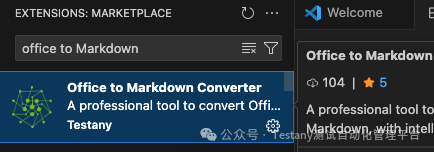
Simply put: It turns your Office docs (.docx, .pptx, .xlsx) into clean, ready-to-publish Markdown inside VS Code. One click.
The "Magic" Workflow ✨
Here is a real example from my own workflow. I drafted a technical deep-dive in Word (old habits die hard) with diagrams and code snippets. Usually, converting this to our blog's Markdown format would take me 20 minutes of cleanup.
With this extension?
- Open VS Code file explorer.
- Right-click the
.docxfile. - Select "Convert to Markdown".
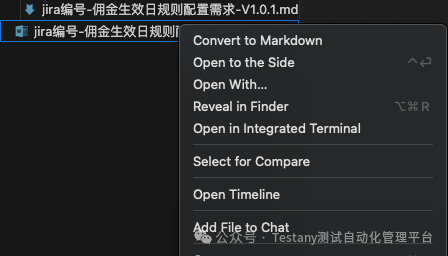
Boom. 💥
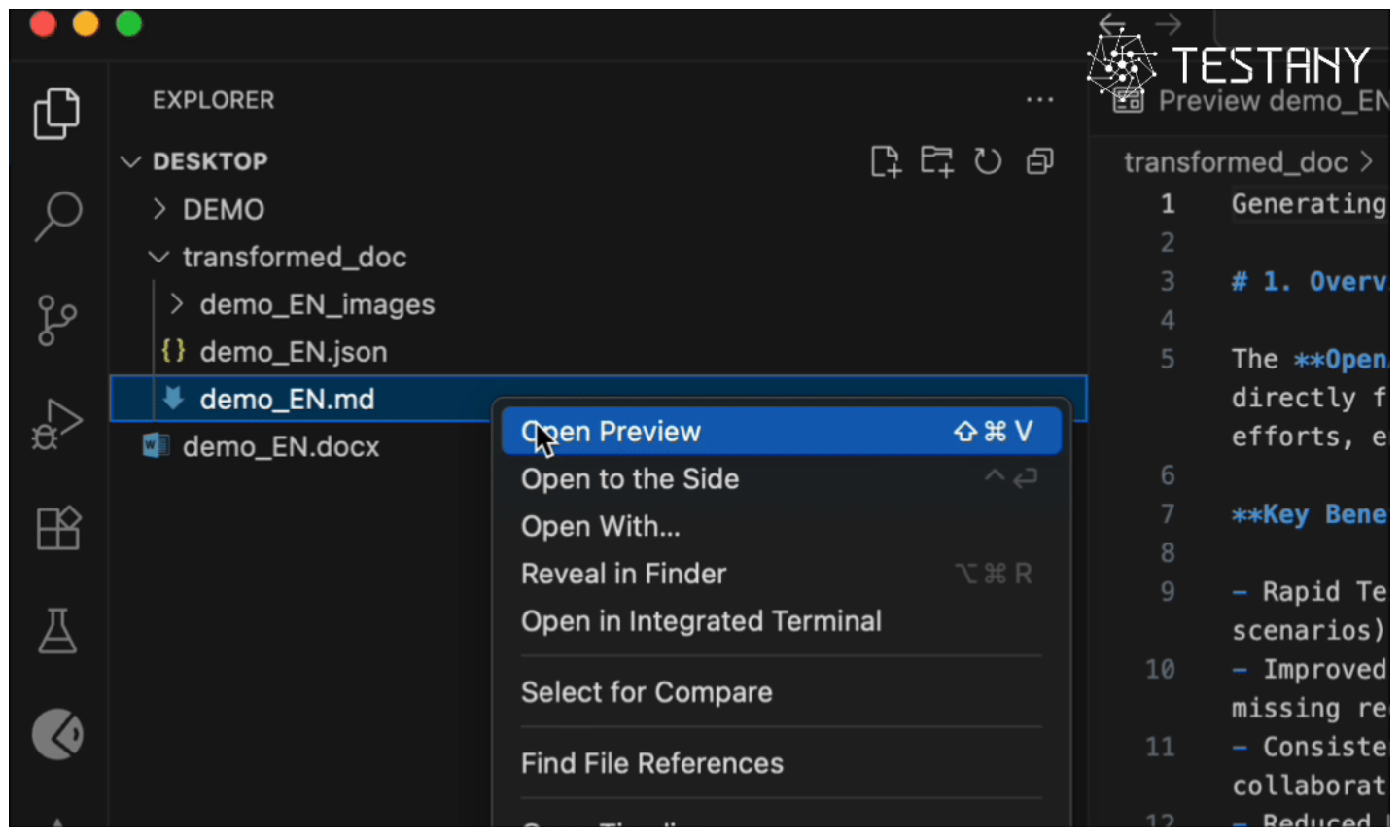
Three seconds later, a new folder appears. Inside, you have a pristine .md file. But here’s the kicker: all those images were automatically extracted into an _images folder, named sequentially, and perfectly linked in the Markdown.
Hit preview, and it looks exactly like the original.
Why It’s a Game Changer
1. Zero Friction
No context switching. No command line wizardry. No leaving your editor. Just right-click and go.
2. The Image Handler (The Real MVP) 🏆
This is the feature that saves your sanity. It handles the extraction, storage, and referencing of images automatically. If you work with technical documentation or tutorials, you know how much time this saves.
3. "It Just Works"
No Python environments to manage. No Pandoc dependencies to install. It works out of the box on Windows, macOS, and Linux.
Who Is This For?
- Developers & RAG Admins: Ingesting legacy docs into your vector database or dev portal? Do it in seconds, not hours.
- Tech Bloggers: Write in Word/Google Docs if you must, but publish in Markdown without the headache.
- Product Teams: Keep your specs in version control without losing the rich media from your original drafts.
Get It Free
Stop the manual copy-pasting. Reclaim your time.
Search for "Office to Markdown Converter" in the VS Code Marketplace, or grab it here:
👉 VS Code Marketplace - Office to Markdown Converter
It’s completely free. Happy coding! 🚀